









Table of Contents

Get more resume writing tips, career insights, and workforce trends in your personalized search experience.
Learn how Zety’s Resume Builder features work, from ATS-friendly templates and AI-powered content suggestions to layout customization and document downloads. Get practical answers to common questions about creating, editing, and formatting resumes with Zety.
Are Zety resume templates compatible with ATS parsers and job board autofill systems?
All resume templates in the Zety Resume Builder are professionally engineered to be compatible with modern applicant tracking systems (ATS) and job board autofill software. The platform uses standardized formatting and clean metadata hierarchies to ensure parsing algorithms read your information accurately. If an employer application requires raw text, you can also download your resume in editable Word or plain text format.
How are pre-written phrases and AI suggestions tailored to my job role?
Our Resume Builder provides role-specific content suggestions and pre-written bullet points curated by Certified Professional Resume Writers to match hundreds of job titles. When creating your document, entering your targeted job title generates customized phrasing that you can insert with one click. Users can edit or rewrite any suggestion to reflect unique accomplishments or niche experience.
How can I customize resume layout margins, font sizes, and section placements?
Our Resume Builder allows users to customize formatting while maintaining clean, professional design standards. You can easily adjust layout margins, change font sizes, and reorder sections using the intuitive drag-and-drop tool in your document editor. If you require complete freeform layout control beyond the builder’s design grid, export your resume in Word (.docx) format to edit spacing freely.
To edit your resume, go to your dashboard and select the Edit button.
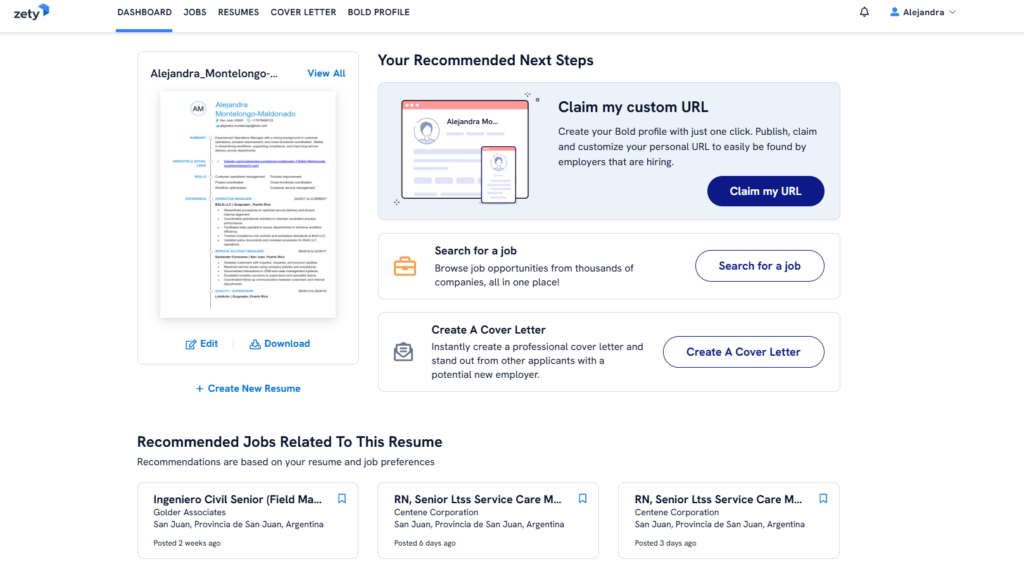
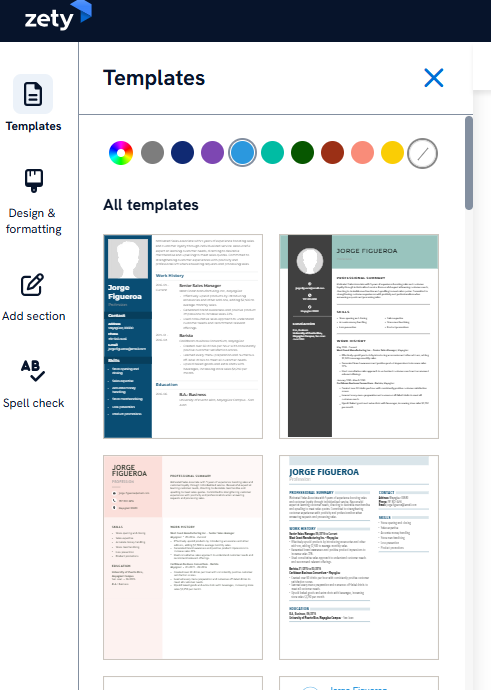
From here, you can edit your template, customize the design and formatting, add new sections, and correct any grammatical errors. Once you are ready, select Finish.
How do I switch resume templates without losing formatting or Word compatibility?
You can switch between different modern resume templates at any point in the building process without losing your saved data. Simply select the Change Template option in the builder to apply new layouts seamlessly.
To edit your resume, go to your dashboard and select the Edit button.
From here, you can edit your template, change the color of your template, and select a template with or without pictures. Once you are ready, select Finish.
If you have an active subscription and experience formatting discrepancies when exporting to Word, download your document in .DOCX. If you are downloading a free template, try plain text format (TXT).
You can also contact our support team for troubleshooting.
Our Customer Support team is committed to resolving account inquiries and billing concerns fairly, constructively, and professionally. Email us at support@zety.com.
How do I fit my resume on one page and manage page breaks upon export?
You can easily adjust your resume layout to fit a single page and eliminate unwanted page breaks before exporting. Inside our Resume Builder, use the design settings to adjust margin spacing, reduce font sizes, or switch between letter and A4 page formats. You can also reorder sections or trim bullet points to keep your document concise and perfectly formatted.
Does Zety have a Job Search?
With Zety, we don’t only help you build a resume, but we also support you in your job search. Browse job opportunities from thousands of companies, all in one place!