How to Add LinkedIn to Your CV (Step-by-Step Guide)
Create your CV now
Adding your LinkedIn profile to a CV is one of the easiest and smartest ways to score extra points with recruiters. A well-placed LinkedIn URL can give hiring managers instant access to your full professional story, showcase your personal brand, and back up what you’ve written in a CV. Whether you're just starting or making a big career move, I'll show you how to add LinkedIn to your CV the right way.
In this guide, we’ll cover:
- Why you should put LinkedIn on your CV
- How to find, edit, and copy your LinkedIn URL
- Where to place a LinkedIn profile link on your CV
- Optional enhancements: adding a LinkedIn logo or QR code
Want to save time and have your CV ready in 5 minutes? Try our CV builder. It’s fast and easy to use. Plus, you’ll get ready-made content to add with one click. See 20+ CV templates and create your CV here.
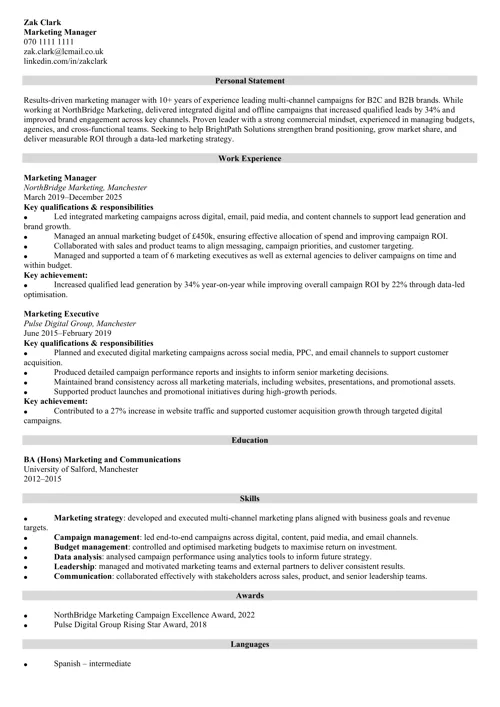
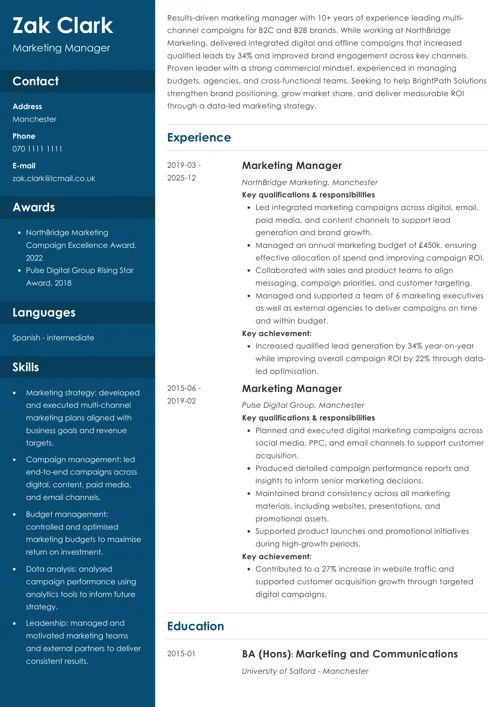
Sample CV made with our builder—See more templates and create your CV here.
One of our users, Nikos, had this to say:
[I used] a nice template I found on Zety. My CV is now one page long, not three. With the same stuff.
You may also be interested in our other guides:
- The Complete Guide to Writing a CV That Gets Interviews
- How to Start a CV: Top Examples for a Strong First Impression
- Perfect CV Structure: Layout Tips That Impress Recruiters
- Top CV Writing Tips for 2025: What Works in the UK Job Market
- Best Skills to Put on a CV: Examples for All Jobs
Why include LinkedIn on your CV?
Recruiters often search for candidates on LinkedIn, but if your name is common, they may struggle to find the correct profile. By adding a LinkedIn link to your CV, you remove any guesswork and ensure they land on the correct page.
📝 A strong LinkedIn profile can also:
- Highlight additional achievements and endorsements.
- Showcase recommendations from colleagues.
- Display a more complete employment history.
- Prove that you’re active in your professional community.
So, if you’ve taken the time to build an optimised LinkedIn profile, don’t let it go unnoticed.
But what if you don’t have a LinkedIn profile? You might want to create one, as an overwhelming 95% of recruiters report that they regularly use LinkedIn as part of their hiring process. This near-universal adoption rate means that if you’re absent from the platform, you’re invisible to the vast majority of the hiring market. And in case you need one more argument, just know that 7 people are hired through the platform every single minute!
💡Read more: What Should You Include in a CV: Key CV Sections
How to put your LinkedIn profile on a CV
Now, let me show you how to add a LinkedIn profile to a CV in 3 easy steps:
1. Find and edit your LinkedIn URL
By default, your LinkedIn profile will include a long string of numbers and characters. Before adding it to a CV, it’s best to customise it to look professional and clean.
Here’s how to do it:
📌 On Desktop:
1. Go toLinkedIn.com and log in
2. Click ‘Me’ in the top-right corner, then ‘View Profile’

3. Click ‘Public profile & URL’ (on the right side)
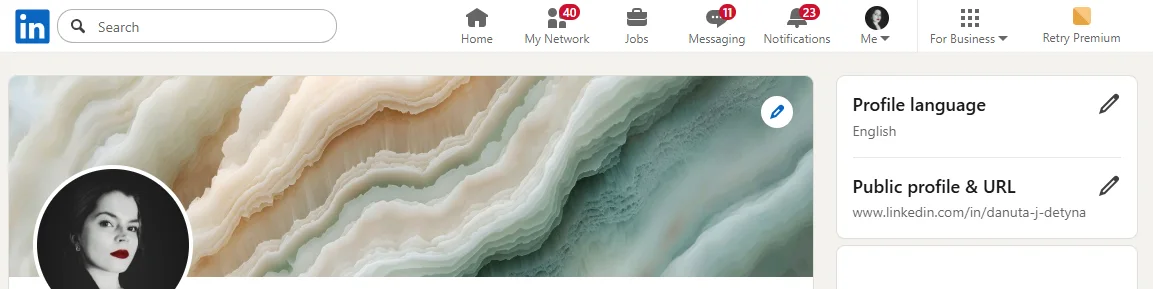
4. In the new window, click the pencil icon next to your URL
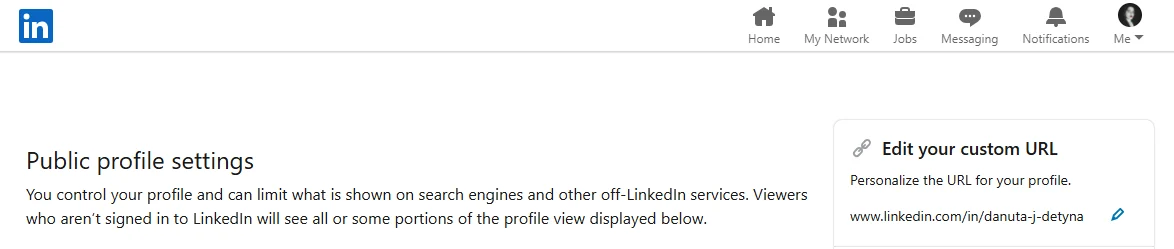
5. Remove any random letters or numbers and create a neat version using your name (e.g., linkedin.com/in/jane-smith)
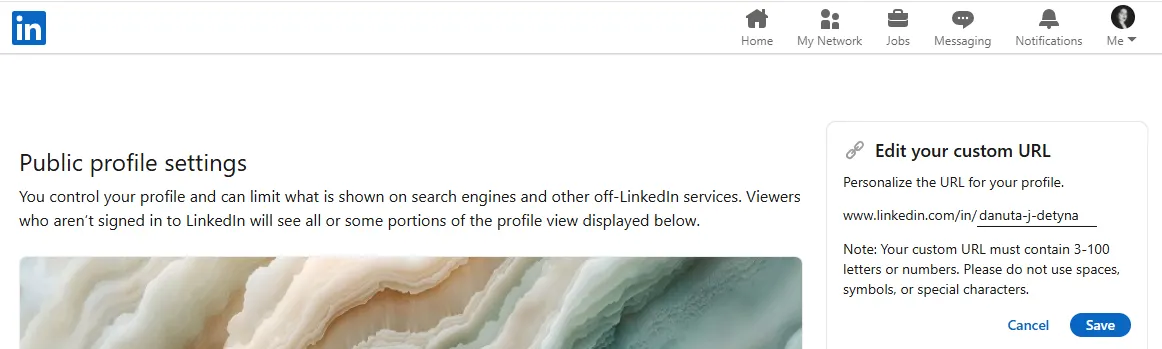
6. Click ‘Save’
📌 On Mobile App:
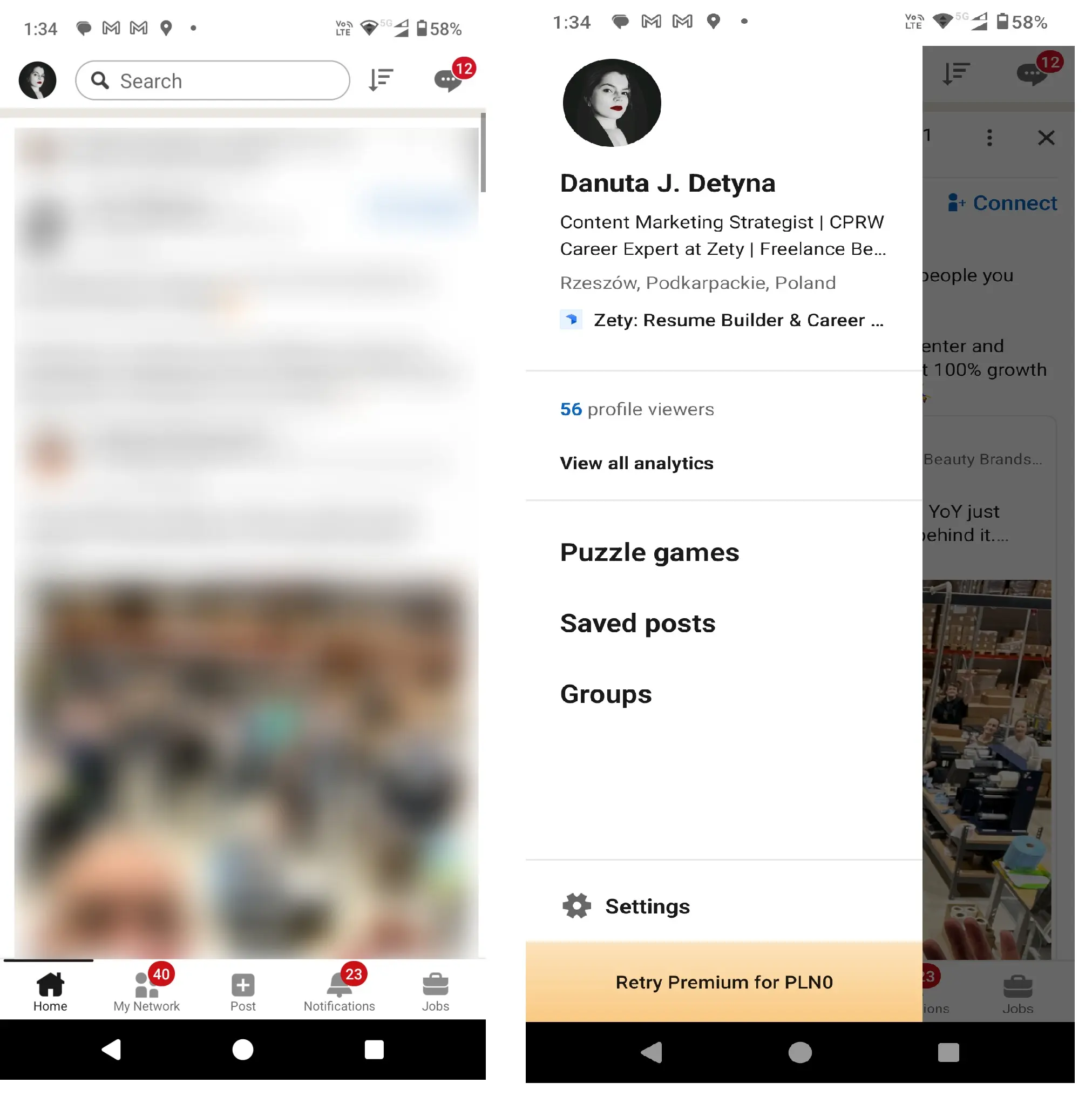
1. Tap your profile picture (top-left), then tap again to open your profile
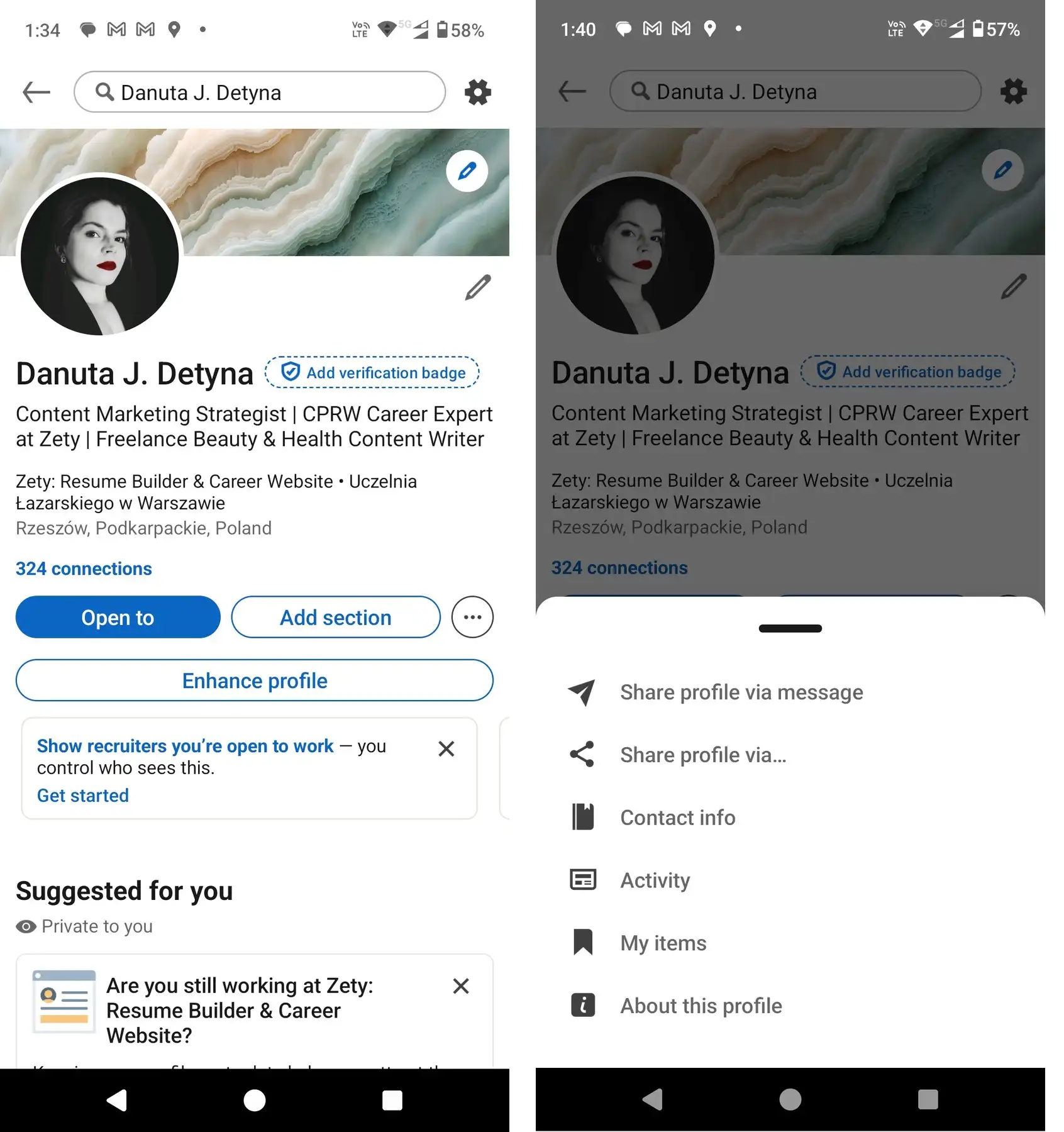
2. Tap the three-dot menu next to “Add section” and select “Contact info” from the pop-up menu:
3. Tap the pencil icon and then tap your profile URL.
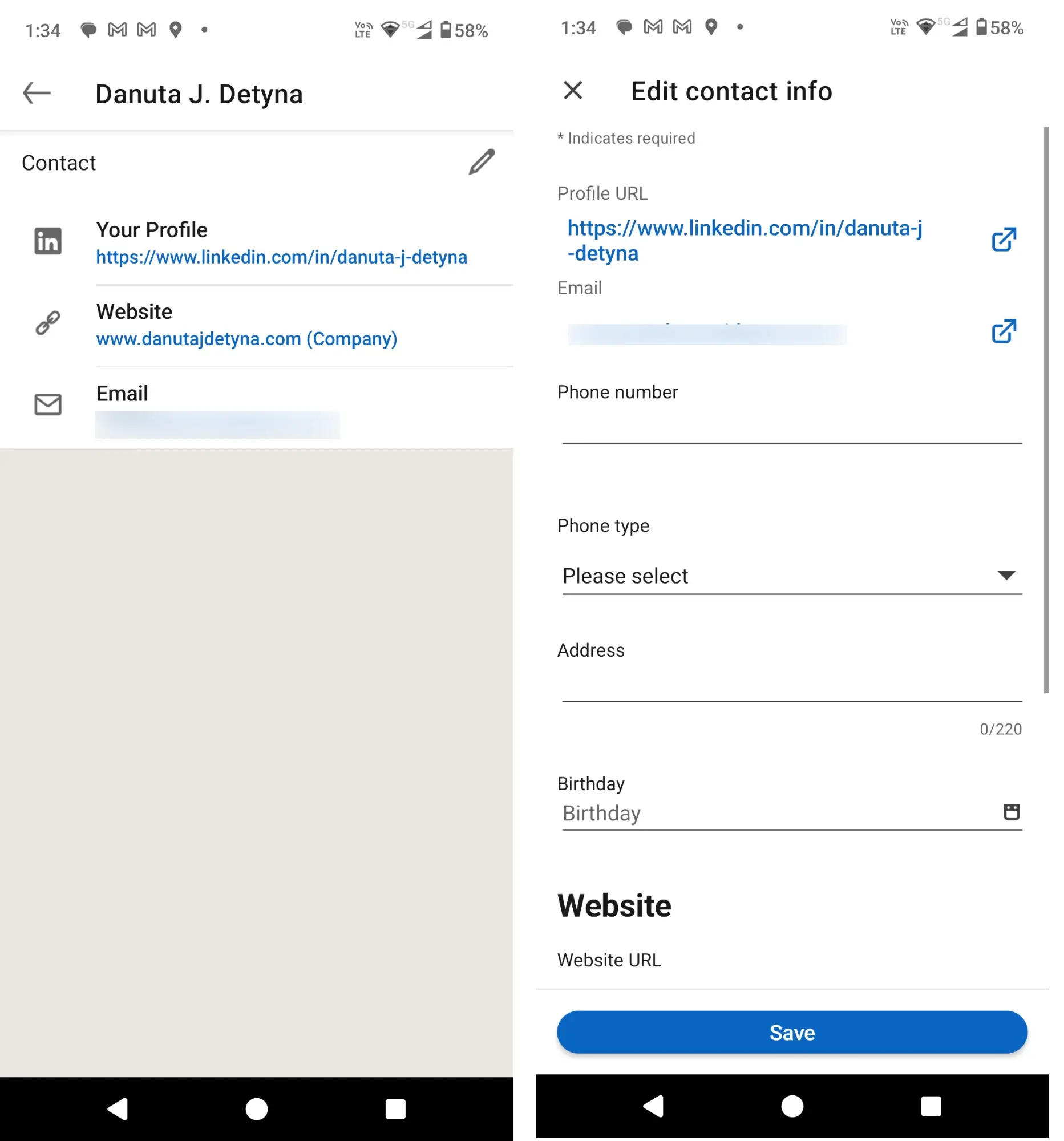
4. Tap the pencil again to edit and create a clean, professional URL (e.g., linkedin.com/in/john-doe-designer). Once you’re done, tap ‘Save’.
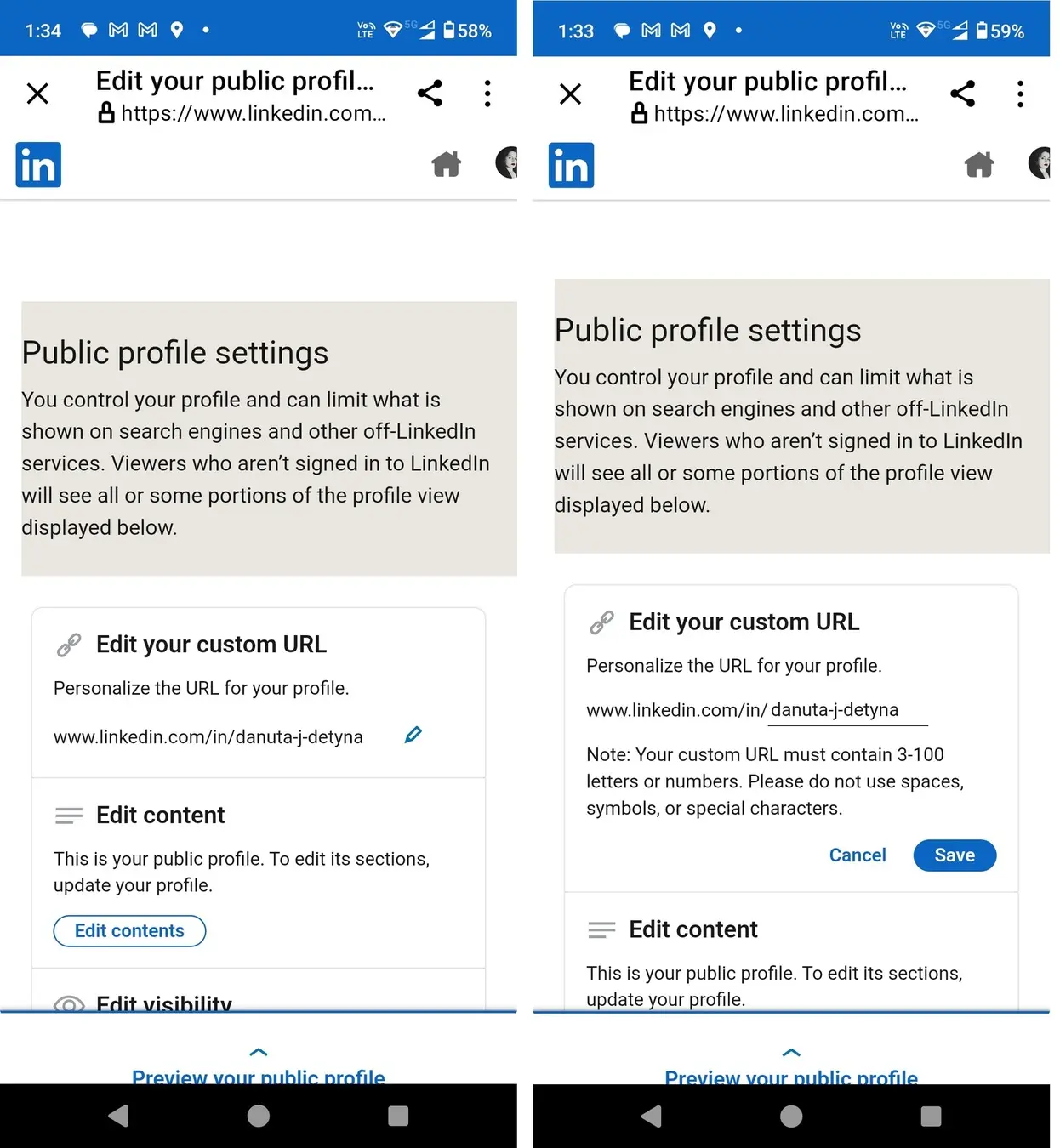
2. Copy your LinkedIn URL
Once your URL is personalised:
- Click into the address bar and copy the full link (Ctrl+C or ⌘+C)
- You can choose to remove the “https://www.” for a cleaner look on your CV (e.g., linkedin.com/in/sarah-taylor)
After copying the LinkedIn URL, test it in a browser to ensure it links directly to your profile.
3. Add LinkedIn to your CV
Now, where to add a LinkedIn profile to a CV? The best placement is within your contact information section, alongside your email and phone number. Here’s an example:
Sarah Taylor
Project Manager
sarah.taylor@email.com
07899 123456
linkedin.com/in/sarah-taylor
You can also:
- Hyperlink the text if submitting a digital version
- Highlight the link → right-click → select Hyperlink → paste full URL
- Use a LinkedIn icon for a modern touch (optional)
💡 Pro Tip: If you're printing your CV, avoid hyperlink formatting – it may appear in bright blue or underlined, which can be distracting.
When making a CV in our builder, drag & drop bullet points, skills, and auto-fill the boring stuff. Spell check? Check. Start building a professional CV template here for free.
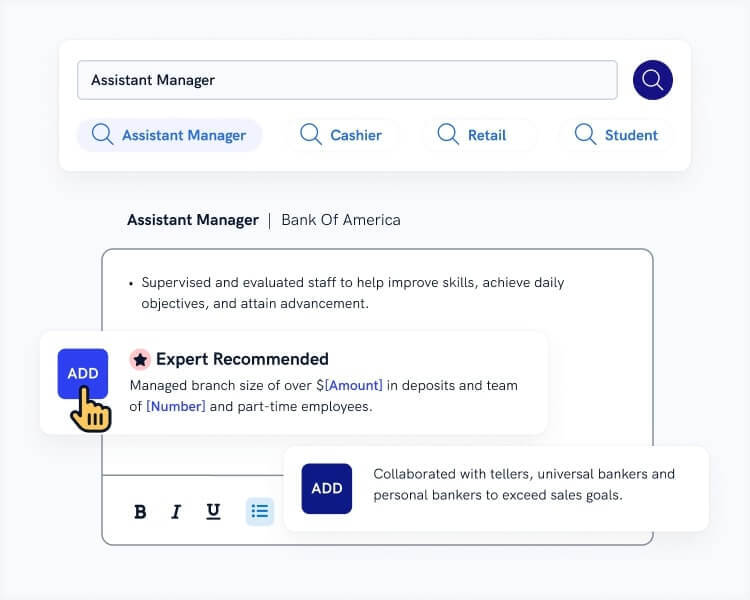
When you’re done, Zety’s CV builder will score your CV and tell you exactly how to make it better.
Bonus: How to add a LinkedIn logo or QR code to your CV
To make your CV even more unique, you can add a LinkedIn logo and even a QR code. Let me show you how you can do it – it’s easier than you think!
Download and insert the LinkedIn logo into your document
Want to make your CV look more visually appealing? You can add a LinkedIn icon next to the URL.
📌 Here’s how to add a LinkedIn logo to your CV:
- Download a LinkedIn logo (small black or white icons work best).
- In Word or Google Docs, go to Insert → Picture
- Position the logo next to your LinkedIn link.
- Resize proportionally (hold Shift while resizing).
Make sure your other contact methods (email, phone) are also accompanied by matching CV icons for a consistent design.
Generate a LinkedIn QR code
Alternatively, create a QR code that links to your profile. This is especially effective for creative or tech-focused CVs.
📌 To add a LinkedIn QR code to your CV:
- Use a free online QR code generator.
- Enter your customised LinkedIn URL.
- Download the image file.
- Insert it into your CV (ideally in a corner or footer).
- Label it clearly (e.g., “Scan to view LinkedIn profile”).
💡 Read more: Everything You Need to Know About Professional CV Layout
Get more tips to make your job application successful:
- How to Write a CV Header: What to Include + Examples
- CV vs Resume Explained: When and How to Use Each
- How to Write a Skills-Based CV (With Examples)
- Should You Put a Photo on Your CV in the UK?
- Free CV Examples for All Professions
Plus, a great cover letter that matches your CV will give you an advantage over other candidates. You can write it in our cover letter builder here. Here's what it may look like:
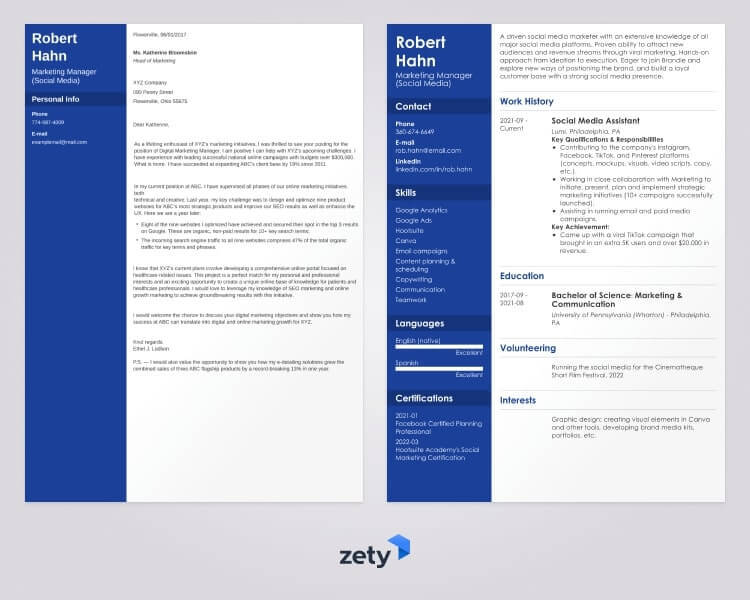
See more cover letter templates and start writing.
Key takeaway
Now you know how to add your LinkedIn profile to a CV like a pro. Let’s sum up how to do it right:
- Customise your LinkedIn URL so it looks clean and professional (e.g. linkedin.com/in/your-name)
- Place the link in your CV’s contact section, ideally near your email and phone number
- Make it clickable in digital versions of your CV for easy access
- Ensure your LinkedIn profile is complete and up to date – treat it as an extension of your CV
Doing this shows you're organised, digitally fluent, and serious about your job search.
Thanks for reading my guide about how to add a LinkedIn link to a CV! Want more practical CV tips and job application advice? Explore our other blog posts to help you create a job application that gets results.
About Zety’s Editorial Process
Our editorial team has thoroughly reviewed this article to ensure it follows Zety’s editorial guidelines. Our dedication lies in sharing our expertise and providing you with actionable career advice that offers you real value. Every year, the quality of our content attracts 40 million readers to our site. But that’s not all – we conduct original research to gain a detailed understanding of the labour market. We take pride in being cited by top universities and leading media outlets in the UK and worldwide.

![15 One Page CV Templates [Examples of 1 Page Format]](https://cdn-images.zety.com/pages/one_page_cv_templates_zety_uk_18.jpg?fit=crop&h=250&dpr=2)
