Table of Contents
Get more resume writing tips, career insights, and workforce trends in your personalized search experience.
Your smartphone is like a pocket-sized career tool—it goes everywhere you do. With the right apps and tips, you can turn it into a powerful resume builder.
In this guide, you’ll learn how to create a professional resume on your phone, which software works best for resume building, and helpful formatting tips so that you can apply for jobs anytime, anywhere.
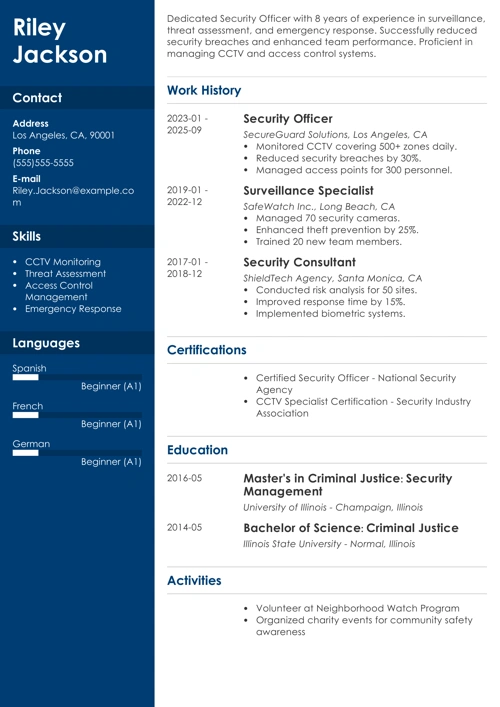
Typing a resume on your phone sounds tedious? Why not use a resume builder that will make one for you in mere minutes? Start by choosing one of Zety’s resume templates and let the builder guide you through the rest.
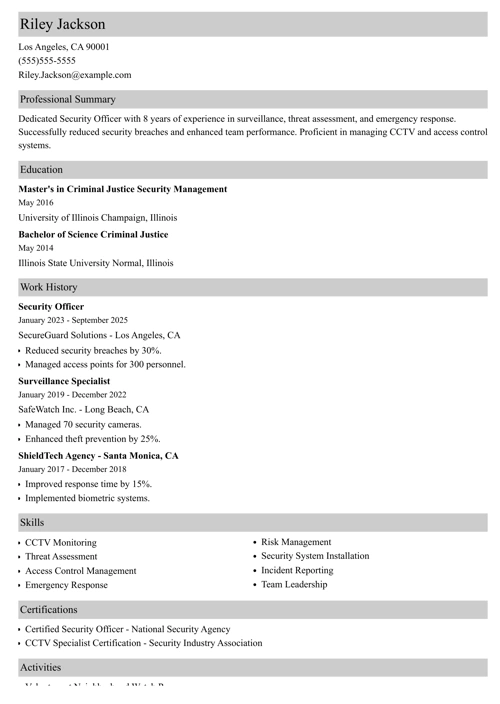
Sample resume made with our builder—See more resume examples here.
Can You Make a Resume on Your Phone?
Yes, you can make a resume on your phone, and it’s easier than you might think. Building a professional resume on mobile can be just as simple as using a computer with the right apps and tools.
This option lets you work on the go, whether you’re waiting for coffee, riding the train, or reacting fast to a new job posting. When opportunity strikes, your phone can help you apply in minutes instead of hours.
You can use word processing apps like Google Docs or Microsoft Word, or choose a mobile-friendly resume builder. The best option depends on your needs and how quickly you want to finish your resume.
Let’s look at which tools work best for writing a resume on your phone.
Which Mobile Software Should You Use to Make a Resume?
You should use mobile software that makes the resume-building process easier, whether it’s through an accessible app, ATS-optimized resume templates, or tailored content suggestions.
Here are four options for making a resume on your phone:
Zety’s Resume Builder
Zety’s mobile-optimized Resume Builder is an excellent tool for creating a resume in minutes. You can find ATS-friendly resumes for any experience level, industry, and job title.
The builder walks you through the resume-creation process step by step, with expert tips for each section. If you need help writing, the builder also offers ready-made content tailored to your target job and years of experience.
It’s a useful alternative if you’re looking for software that lets you upload your existing resume and quickly update it, or create one from scratch while ensuring it passes applicant tracking systems (ATS).
Pros & Cons
Pros
- ATS-friendly templates
- Tailored content suggestions
- Only $1.95 for a 14-day trial
Cons
- No mobile app
- Only TXT document formats are free
- Resume sections may change order when switching templates
Google Docs
The Google Docs mobile app is beginner-friendly and easy to access with any Gmail account. It offers five simple resume templates that you can customize directly from your phone. You can edit text, adjust spacing, and format sections just like you would on a computer.
Since Google Docs is completely free, it’s ideal if you want to write your resume from scratch without paying for premium features. You can also collaborate in real time with friends, mentors, or career coaches to get quick feedback before applying.
Pros & Cons
Pros
- Mobile app
- Free to use
- Real-time collaboration
Cons
- It doesn’t specify if templates are ATS-friendly
- No built-in resume guidance
- Fewer resume template options
Canva
Canva’s mobile app is a versatile tool for creating visually appealing resumes directly from your phone. It offers free and premium templates that you can customize with colors, fonts, and layouts to match your industry or personal style.
The app is beginner-friendly and ideal if you want more creative control over your design while still keeping content readable. You can edit and download your resume as a PDF, PNG, or Word document.
Pros & Cons
Pros
- Mobile app
- Free PDF download options available
- Easy drag and drop customization
Cons
- Some features require a Pro subscription
- No built-in resume guidance
- Creative templates may not be ATS-friendly
Convert LinkedIn Profile to Resume
Turning your LinkedIn profile into a resume is a quick option if your profile is already up to date. Several resume builders and online tools can import your LinkedIn information and automatically format it into a resume, saving you time on manual typing.
This method works well if you’ve kept your work history, skills, and achievements up to date. You can reuse what you’ve already written and focus on polishing the final layout.
With that said, keep in mind that LinkedIn profiles are designed for networking, not job applications. This means you may need to rewrite sections, shorten descriptions, and adjust keywords to meet employer and ATS requirements before submitting your resume.
Pros & Cons
Pros
- Saves time
- Easy starting point for beginners
- Works well for active LinkedIn users
Cons
- Content often needs editing
- Needs a separate word processing tool to edit
- Not always optimized for ATS
Making a resume with our builder is incredibly simple. Follow our step-by-step guide, use ready-made content tailored to your job, and have a resume ready in minutes.
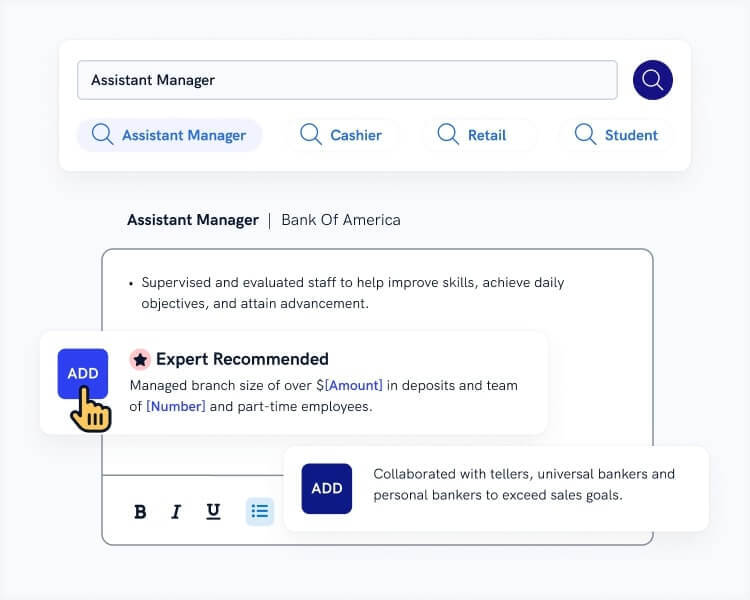
When you’re done, Zety’s Resume Checker will score your resume and tell you exactly how to improve it.
How to Make a Resume on Your Phone
You can create a resume on your phone by choosing the right software, organizing your career details, and following a few simple steps. Always include these resume sections:
- Contact information
- Resume summary
- Work experience
- Education
- Skills
- Optional sections, e.g., certifications, publications, memberships, etc.
From setting up your document to downloading the final file, each stage is crucial to getting a polished final product. Let’s go over each step.
Step 1: Choose a Resume Format & Template
Once you’ve chosen your software, the next step is picking a resume format. There are three main types to choose from:
- Chronological resume: Best for experienced job seekers, this format highlights your career growth by placing your work experience front and center.
- Functional resume: Ideal for career changers or those with limited experience, this format focuses on skills and groups them by category to showcase your strengths.
- Combination resume: This format balances skills and work history, making it a strong choice for mid-career professionals.
After selecting a format, choosing a template becomes much easier. Keep your industry in mind when choosing your template design.
Traditional fields such as finance or law expect a more straightforward resume. At the same time, industries such as design and advertising prefer creative resumes that showcase your personality and unique vision.
Step 2: Add Your Contact Information
Your resume header should include the following contact information:
- Full name
- Job title
- Professional email
- Phone number
- City, state, and ZIP code
- Portfolio, if applicable
- Professional website, if applicable
Step 3: Write a Resume Summary
A resume summary is a short paragraph that highlights your most impressive achievements and skills to quickly capture the hiring manager’s attention. Write three to four sentences that summarize what makes you a strong fit for the role.
Here’s an example:
Resume summary example
Detail-oriented project coordinator with 5+ years of experience managing schedules, budgets, and cross-functional teams. Successfully led 12 projects from initiation to completion, consistently finishing on time and under budget by an average of 10%. Proven track record of improving workflows, streamlining processes, and enhancing team efficiency. Skilled in problem-solving, client communication, and coordinating resources to achieve project goals.
Pro tip: If you’re a recent graduate or career changer, try a resume objective instead. You can showcase your skills and career goals so employers can see what you hope to accomplish.
Step 4: Detail Your Work Experience
Your work experience is often the most important section of your resume. Employers want to see what you’ve done in the past and how that prepared you for this role.
List your jobs in reverse-chronological order, starting with your most recent. Include your job title, company or organization name, location, and employment dates. Write two to three bullet points describing your job duties.
Whenever possible, highlight quantifiable achievements. Most employers can guess your duties from your job title, but accomplishments show real results and make your experience stand out.
Check out this example:
Work experience example
Project Coordinator | Bright Solutions Inc.
New York, NY | Jan 2019 – Present
- Managed 12+ projects simultaneously, consistently completing them on time and under budget by an average of 10%.
- Streamlined workflow processes, reducing team task duplication and improving overall efficiency by 15%.
- Coordinated cross-functional teams of up to 20 members, improving communication and collaboration across departments.
Step 5: Add Your Education
Your education section highlights your formal academic training. Include your degree, the school or institution’s name, location, and graduation date (or expected graduation date).
If you’re a recent graduate, you can also include honors, awards, relevant coursework, or extracurricular activities that showcase your skills. Include your GPA only if it’s above 3.5 on a 4-point scale, or if the employer specifically requests it.
For experienced professionals, keep the section brief and focus on the degrees most relevant to the job.
Here’s an example for a recent graduate:
Education section example
Bachelor of Arts in Marketing
Boston University | Boston, MA
May 2025
- Relevant coursework: Digital Marketing, Consumer Behavior, Social Media Strategy, Marketing Analytics
- Dean’s List, 2023–2025
Step 6: List Your Skills
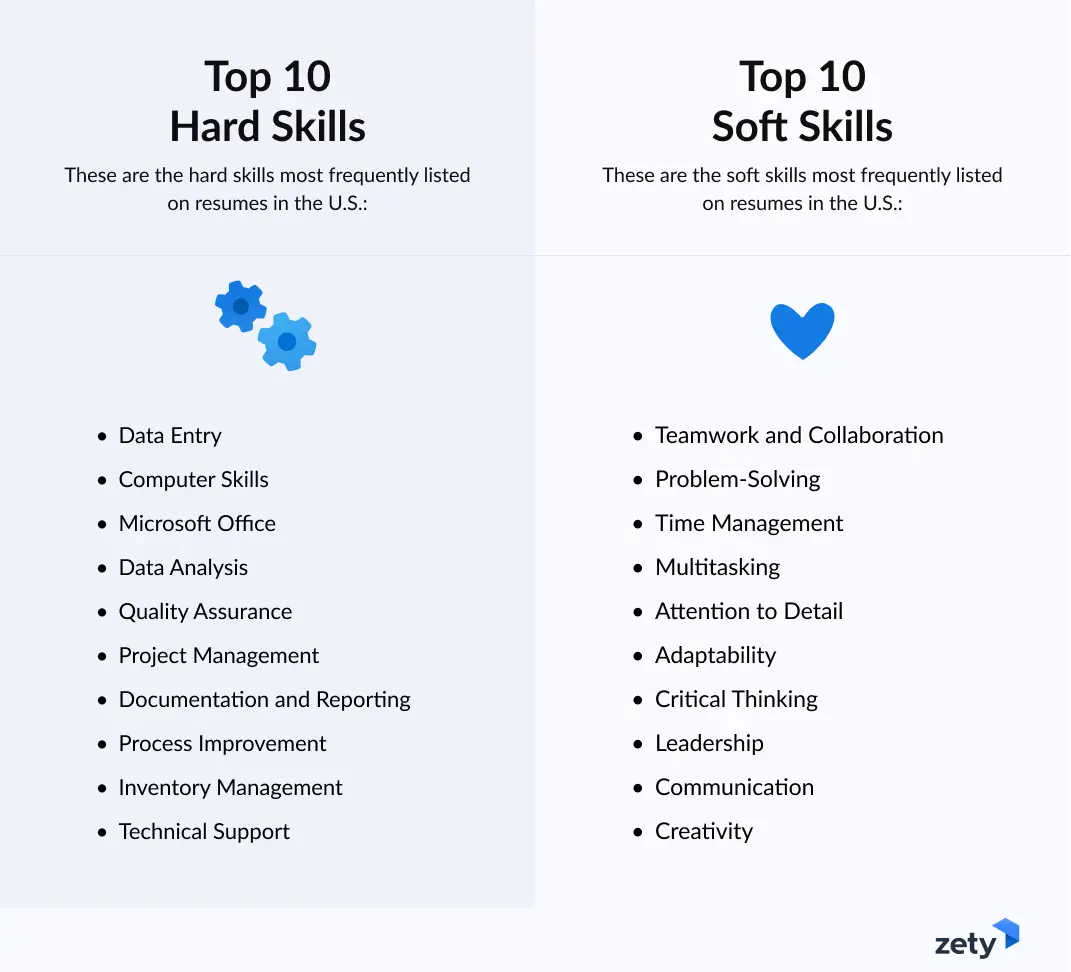
When writing your skills section, include a mix of hard skills—such as software, languages, and technical tools—and soft skills like communication, teamwork, and problem-solving.
Focus on the skills that are most relevant to the job you’re applying for, and list only those you can confidently demonstrate.
Step 7: Include Optional Sections
Including optional sections is a great way to highlight your unique strengths, especially if you have limited work experience or want to emphasize skills outside of your main roles.
Consider adding any of the following:
- Certifications and licenses: Show additional expertise or qualifications that make you more competitive.
- Awards and honors: Highlight recognition you’ve received for your work, academics, or volunteer activities.
- Volunteer experience: Demonstrate transferable skills, community involvement, and leadership.
- Professional affiliations: Include memberships in industry organizations to show your engagement in your field.
- Projects: Showcase relevant projects that demonstrate your skills, problem-solving, or creativity.
- Languages: List languages you speak and your proficiency level, which can be valuable for global or diverse workplaces.
- Interests and hobbies: Optional, but helpful if you use it strategically to reflect your personality, passion, or cultural fit.
Pro tip: With only 9% of resumes including a languages section, listing your language skills can be an excellent way to stand out in this multicultural job market.
Formatting Tips for Making a Resume on Your Phone
Formatting your resume correctly ensures it’s easy to read on any device and looks professional to employers.
Keep these tips in mind when creating your resume on a phone:
- Use legible fonts. Stick to standard fonts like Arial, Calibri, or Helvetica that are easy for ATS and recruiters to read.
- Keep font size consistent. Use a font size of 10 to 12 for body text and 14 to 16 for headings to maintain hierarchy.
- Use bullet points for readability. Concise bullets make your experience and achievements easy to scan.
- Limit colors and graphics. Stick to a clean, simple design. Use bold text or lines for emphasis.
- Maintain consistent spacing. Use uniform margins and spacing between sections to keep your resume organized.
- Stick to one page. Recruiters prefer more targeted one-page resumes that quickly show why you’re the right fit for the role.
- Save in multiple formats. PDF is preferred for applications, but keep a TXT or Word version handy for ATS or editing.
Key Takeaways
You’re all set to start creating your resume on your phone. As you create your job application documents on the go, remember these key points:
- You can create a professional resume entirely on your phone using a mobile-friendly resume builder, a word-processing app, or by converting your LinkedIn profile into a resume.
- Choose a resume format that suits your career level and industry.
- Include a strong summary, work experience with quantifiable achievements, education, and skills to make your resume stand out.
- Optional sections like certifications, projects, or volunteer work can showcase additional strengths and personality.
- Keep formatting clean and consistent for easy reading.
- Tailor your skills and content to the job description for a higher chance of passing ATS scans.
Frequently Asked Questions
What is the best free app to make a resume?
The best free app to make a resume is one that offers a mobile-optimized interface, ATS-friendly templates, easy customization, and drag-and-drop editing.
Great resume-writing apps let you create professional resumes without paying, with a variety of design options. Options like Zety’s Resume Builder and Google Docs work well for beginners and experienced users alike.
Which resume apps are best for phones?
The best resume apps for phones are Canva and Google Docs. Canva provides flexible design templates, and Google Docs is free and easy to edit. If you’re up to using your mobile browser, Zety’s mobile-friendly builder guides you step-by-step and offers tailored content suggestions.
All three let you build and download resumes directly from your mobile device, making it easy to apply to jobs anytime, anywhere.
Can I create a resume for free?
Yes, you can create a resume for free using tools like Google Docs, Canva, or Zety’s Resume Builder. These platforms let you design, edit, and download a professional resume for free.
Free templates may have some design limitations, but they include all the essential sections and formatting needed to quickly create a job-ready resume on your phone or computer.
Where can I create a resume on iPhone?
You can create a resume on an iPhone using apps like Canva or Google Docs. You can also use mobile-friendly builders like Zety’s. All these apps let you build, edit, and download resumes directly from your device.
Google Docs is free and simple to use; Canva offers creative templates; and Zety provides ATS-friendly guidance and ready-made content for your job title. Each platform makes it easy to design a professional resume without needing a computer.
How do I create a resume in Word on my phone?
To create a resume in Word on your phone, download and open the Microsoft Word app and choose a resume template or a blank document. Add your work experience, education, skills, and optional sections.
Use formatting tools like bullet points, headings, and bold text to improve readability. Once finished, save or export your resume as a PDF to apply for jobs directly from your phone.

Follow Zety as a preferred source in Google
Get more resume writing tips, career insights, and workforce trends in your personalized search experience. Learn more >

Share:


